Binquibble blog · RepeatRight
How to save laser settings for repeat jobs
A customer asks for another batch of engraved tags. You have the artwork, but which material did you use? What speed and power gave you the finish they liked? Save the setup when a job comes out right and you’ll have a starting point when the order comes back.

A repeat order for engraved asset tags
Say a customer reorders 20 brushed stainless asset tags, each 50 × 20 mm, with the same logo and a new run of serial numbers. Use the previous job to recover the setup, then check the details that have changed for this batch.
Find the original tag setup
Open the Material Settings Library and use Choose Material Settings to find the original job. Check the material, finish, thickness and dimensions against the new blanks. In the job notes, record the artwork version and jig position, and confirm the new serial numbers before engraving.
Choose the machine and the Engrave operation
In Machine-specific Cut Settings, select the laser used for the original job and choose Engrave. Review the saved power, speed, passes and focus offset for that operation. For pre-cut tags, the engraving setup is the one you need. If the job also involves cutting a profile, keep those values under Cut.
Review the saved versions and test a spare tag
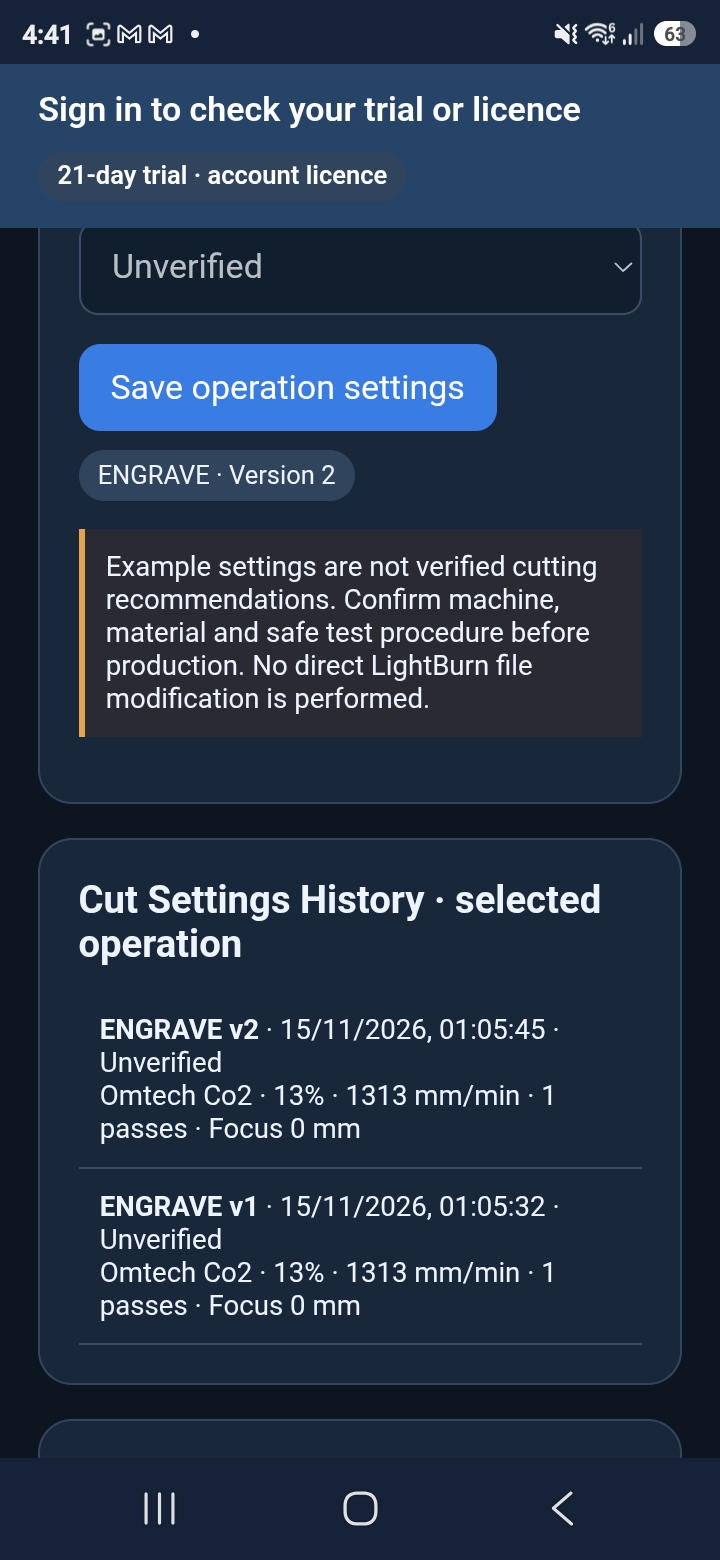
Open Cut Settings History for the selected operation. The app example shows ENGRAVE v1 and v2 marked Unverified. Use your job notes to identify the setup you previously tested on the same material and machine. Engrave a spare tag and compare the logo position, contrast and legibility with the approved sample before running the batch.
Check the repeat order and sync when needed
Use Prepared repeat orders to check whether the job is already in the list. The app example shows the empty state before any orders have been prepared. If you’re moving from the workshop computer to a phone, check Account & sync, sign in to the same account on both devices, save your changes locally and press Sync.